During the vacation days, I happened to notice that I had a waveshare, ESP32C6 based board with an LCD screen lying around.
Thinking about what I can do with it, I thought running Rust then it would be a fun exercise. I had the idea of running a simple animation so that I could use the see it on the LCD and also use the LED. So there goes the topic for this post. Let’s get started.
Note: If you would like to jump straight to finished code, you can find it here
Setting up Rust
The first step is to install rustup. Rustup provides a straightforward way to install Rust versions along with its toolchain. Now, we can install the required riscv toolchain using rustup, using the below command.
rustup toolchain install nightly --component rust-src
rustup target add riscv32imac-unknown-none-elf # For ESP32C6
Since we also depend on C libs, you also need to have clang or similar installed.
On other distros like Ubuntu/Debian, you can use this link or if you are running nixOS with nix-shell -p clang.
Now we have everything to build the binary, but we need a tool to flash the image to the board. espflash is a tool that can do just that. We can install espflash with the below command.
cargo install espflash --lockedNow we have the whole setup completed, let’s get to the source code part.
Creating a hello-world with esp-generate
esp-generate is a tool that makes generating rust projects easy. We can install it using the below command.
cargo install esp-generate --lockedLet’s create our project smiley
esp-generate smileyThis will show us a TUI with a few options. We will enable hal and logs. We will keep the default options. This will generate a hello world project. Let’s run it using cargo.
cargo run --releaseWe should see a hello world as can be seen below.
 cargo run --release
    Finished `release` profile [optimized + debuginfo] target(s) in 0.03s
     Running `espflash flash --monitor --chip esp32c6 target/riscv32imac-unknown-none-elf/release/smiley`
[2025-12-15T07:24:56Z INFO ] 🚀 A new version of espflash is available: v4.2.0
[2025-12-15T07:24:56Z INFO ] Serial port: '/dev/ttyACM0'
[2025-12-15T07:24:56Z INFO ] Connecting...
[2025-12-15T07:24:57Z INFO ] Using flash stub
Chip type:         esp32c6 (revision v0.1)
Crystal frequency: 40 MHz
Flash size:        4MB
Features:          WiFi 6, BT 5
MAC address:       9c:9e:6e:7b:56:bc
App/part. size:    36,784/4,128,768 bytes, 0.89%
.....
INFO - Hello world!
INFO - Hello world!
INFO - Hello world!
The commit can be found here
Blinking the LED
Now we need to know the RGB LED in this board. Taking a look at schematics linked in the wiki
We see that it is a WS2812B(NeoPixel) LED. We can use smart-leds to talk with the LED. We can use esp-hal-smartled to interact with
RGB LEDs using the RMT output channel.
Let’s add them via Cargo.toml as optional dependencies.
We also need to add smartleds as a feature to .cargo/config.toml as follows.
[features]
default = [
  "smartled",
]

smartled = [
  "esp-hal-smartled",
  "smart-leds",
]
The changes required in source code are minimal, and the gist of it is as follows.
    // Define a RMT with 80 Mhz
    let rmt = Rmt::new(peripherals.RMT, Rate::from_mhz(80)).unwrap();
    let mut rmt_buffer = smart_led_buffer!(1);
    // Use an RMT channel and create a SmartLedAdapter
    let mut led = SmartLedsAdapter::new(rmt.channel0, peripherals.GPIO8, &mut rmt_buffer);
    let data = [GREEN; 1];
    led.write(data).unwrap();
Now running should blink the RGB LED.

The commit can be found here.
Now we can blink our LED, let’s move to the next section.
Drawing to the Screen
We can draw to the LCD screen(ST7789) using SPI. The display ST7789 is a 1.47-inch display with a resolution of 172x320.
SPI uses four pins, MOSI, SCK, CS, DC which can be seen in diagram from wikipedia.

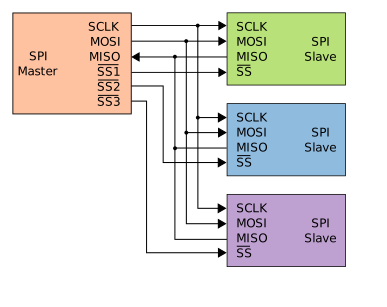
The corresponding pins from our board can be found in waveshare wiki.

We also have a LCD_RST pin to reset the display, LCD_BL pin to turn on the backlight and a LCD_DC pin to signal data or command to the LCD.
To talk SPI, we can use the embedded-hal-bus. To make it easier to draw the graphics, we can use the embedded-graphics We can then use the mipidsi display driver to talk to our ST7789 display.
Let’s add them to Cargo.toml as optional dependencies and change the default to include them too.
default = [
    "smartled",
    "tft"
]

tft = [
   "mipidsi",
    "embedded-hal-bus",
    "embedded-graphics"
]
The gist of code changes is given below. It also includes comments to make things clear.
    // Define the Data/Command select pin as a digital output for LCD. O/1 stands for Command/Data
    let dc = Output::new(peripherals.GPIO15, Level::Low, OutputConfig::default());
    // Define the reset pin as digital outputs and make it high
    let mut rst = Output::new(peripherals.GPIO21, Level::Low, OutputConfig::default());
    rst.set_high();

    // Turn on the backlight
    let mut back_light = Output::new(peripherals.GPIO22, Level::Low, OutputConfig::default());
    back_light.set_high();

    // Define the SPI pins and create the SPI interface
    // sck stands for Serial Clock, miso - Master In Slave Out, mosi - Master Out Slave In, cs - Chip Select
    let sck = peripherals.GPIO7;
    let miso = peripherals.GPIO5;
    let mosi = peripherals.GPIO6;
    let cs = peripherals.GPIO14;
    // We create an SPI interface with the given pins and frequency
    let spi = Spi::new(peripherals.SPI2, Config::default().with_frequency(Rate::from_mhz(10))).unwrap()
    .with_miso(miso)
    .with_mosi(mosi)
    .with_sck(sck);

    // The Chip Select pin is used to select the device that the SPI bus is communicating with
    let cs_output = Output::new(cs, Level::High, OutputConfig::default());
    // Takes control of the SPI bus and the Chip Select pin
    let spi_device = ExclusiveDevice::new_no_delay(spi, cs_output).unwrap();

    let mut buffer = [0_u8; 512];

    // Define the display interface with no chip select
    let di = SpiInterface::new(spi_device, dc, &mut buffer);

    // Define the delay struct, needed for the display driver
    let mut delay = Delay::new();

    // Define the display from the display interface and initialize it
    let mut display = Builder::new(ST7789, di)
    .reset_pin(rst)
    .init(&mut delay)
    .unwrap();

    loop {
        // clear screen
        for color in [Rgb565::WHITE, Rgb565::RED, Rgb565::YELLOW, Rgb565::GREEN] {
            display.clear(color).unwrap();
            // Delay 1 second
            delay.delay_millis(1000u32);
        }
    }
Now you should see an animation on the screen like shown below. Note that I don’t handle errors to shorten code.

The commit can be found here.
The only thing left is to draw some shapes on the screen, rather than simply coloring the screen.
Drawing the Smiley
We can simply draw two circles and a triangle to look smiley. We can use embedded-graphics for this. The code is trivial and is as follows.
fn draw_smiley<T: DrawTarget<Color = Rgb565>>(
    display: &mut T,
    style: PrimitiveStyle<Rgb565>,
) -> Result<(), T::Error> {
    let text_style = MonoTextStyleBuilder::new()
        .font(&FONT_6X10)
        .text_color(style.fill_color.unwrap())
        .build();

    Text::with_baseline(
        "Hello World!",
        Point::new(100, 100),
        text_style,
        Baseline::Top,
    )
        .draw(display)?;

    Circle::new(Point::new(50, 100), 40)
        .into_styled(style)
        .draw(display)?;

    Circle::new(Point::new(50, 200), 40)
        .into_styled(style)
        .draw(display)?;

    Triangle::new(
        Point::new(130, 140),
        Point::new(130, 200),
        Point::new(160, 170),
    )
        .into_styled(style)
        .draw(display)?;

    Ok(())
}
Now you should see a smiley being drawn to the screen.

The commit can be found here.
That’s all folks. Happy hacking :)
Useful Links
- esp-generate was used to generate the project
- espup is also useful to install Espressif SoC toolchains
- probe-rs for debug probes and more
- example programs provide example programs using esp-hal
- awesome esp rust provides a curated list of useful resources
- The Rust on ESP Book to set up the environment and tools
- Waveshare WIKI includes details about the chip with details.